
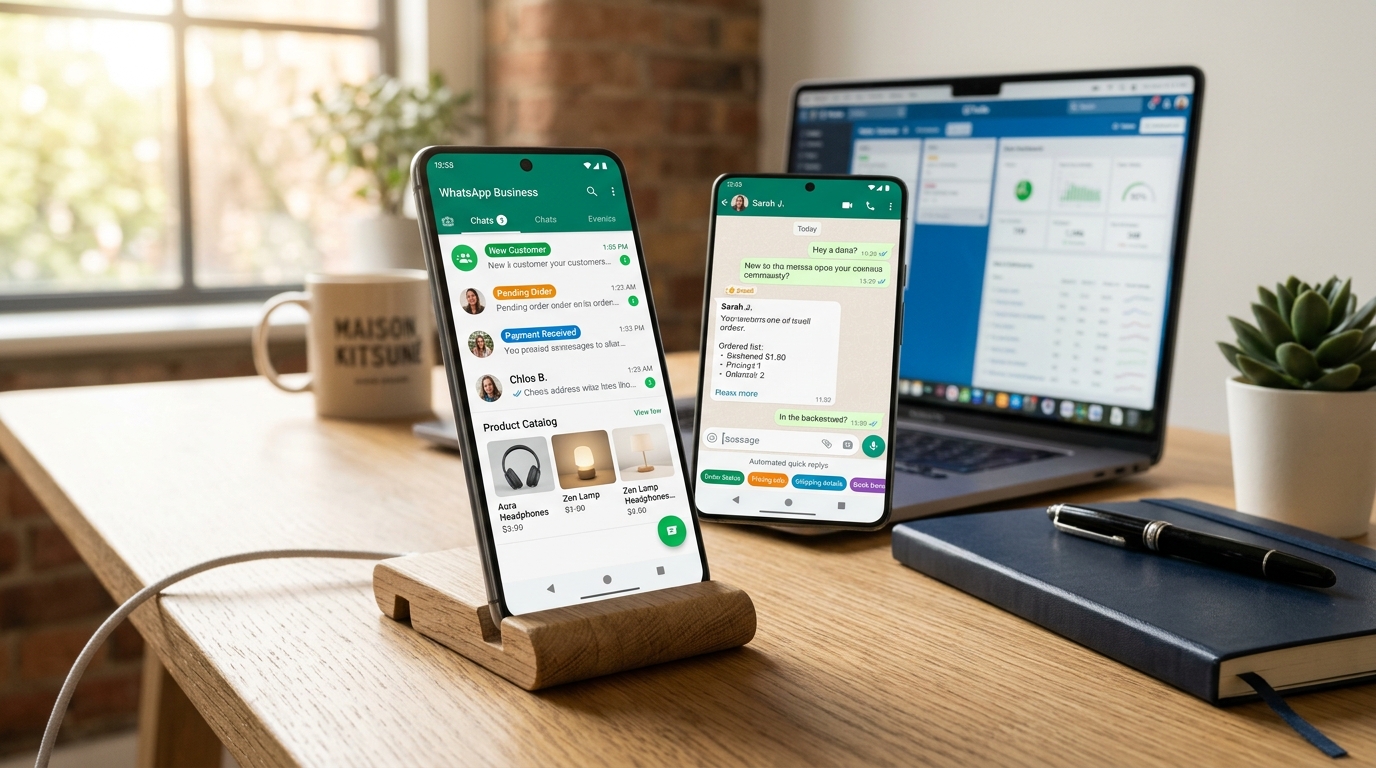
If you operate an independent business, freelance practice, consulting service, or local shop in India, you already know the unwritten rule of client communication: everyone wants to talk on WhatsApp.
While clients in North America might exchange lengthy email threads, Indian clients, founders, and vendors expect immediate, frictionless WhatsApp interactions. But running client communication from your standard personal WhatsApp account quickly turns your life into chaotic burnout:
- Your family group chats, personal memes, and weekend photos get hopelessly tangled up with high-stakes client invoices and urgent bug reports.
- You find yourself typing the exact same bank account details, UPI ID, pricing rates, and portfolio links fifteen times a day on a tiny glass keyboard.
- Clients message you on Sunday night at 11:30 PM, see the blue ticks, and immediately expect an instant response.
- Unpaid client deliverables get buried under twenty casual conversation threads, causing missed payment follow-ups.
To solve this without buying a second smartphone or paying for expensive third-party CRM software, I transitioned my client workflows to the official WhatsApp Business app. It is 100% free forever, operates smoothly alongside personal WhatsApp on the exact same physical phone, and contains powerful automation tools that most freelancers never configure.
In this exhaustive, verified walkthrough, I will guide you through turning WhatsApp Business into an automated communication command center: from setting up automated away and greeting responders to mastering slash shortcuts (/pricing), organizing color-coded chat labels into a client pipeline, and creating a digital service catalog.
You do NOT need two physical phones. Android's native Dual Messenger (or Samsung Dual App / Xiaomi Dual Apps) and modern dual-SIM / eSIM cards allow you to run standard personal WhatsApp on your personal SIM and WhatsApp Business on your secondary work number on the same device with zero conflicts.
1. The Solopreneur WhatsApp Automation Pipeline
Before toggling settings inside the app, let's look at how an inbound client interaction moves through your automated system:
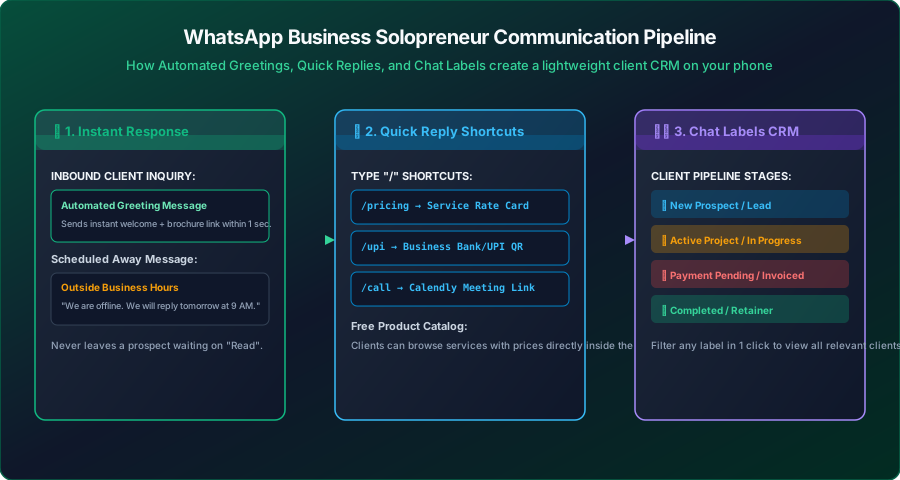
Notice how this pipeline eliminates manual friction: incoming prospects receive an instant professional greeting with service links, you fire pre-formatted rate cards in two taps using slash shortcuts, and you categorize the chat into a visual pipeline so no invoice ever slips through the cracks.
---2. Step 1: Professional Business Profile Configuration
First impressions matter. When a prospective client taps on your profile icon, they should immediately see that you are a legitimate, professional operation rather than an anonymous hobbyist.
• Profile Photo: Use a crisp, professional headshot or your high-res brand logo (500x500 px).
• Business Name: Your brand or legal freelancing entity name (e.g., TyagiHub Digital).
• Category: Select Professional Services, Software & Tech, or Education / Consulting.
• Business Hours: Set exact operating hours (e.g., Mon–Fri: 09:30 AM – 06:30 PM). This is vital because our automated Away Message relies on this schedule!
contact@tyagihub.in) and website URL.
3. Step 2: Automated Greeting & Away Responders
Speed of response is the number one factor that turns a casual WhatsApp inquiry into a paying client. If an entrepreneur messages three agencies for a quote, the first one that responds professionally usually wins the contract.
1. Setting Up the Automated Greeting Message:
- Navigate to Business tools → Greeting message.
- Toggle on Send greeting message.
- Under Recipients, select Everyone not in address book. This ensures your existing friends or repeat collaborators aren't greeted with a robotic welcome every time they say hello.
- Craft a warm, professional message:
Hi there! 👋 Thanks for reaching out to TyagiHub.

I help solopreneurs and growing businesses configure custom digital tools, cloud software setups, and productivity workflows.

Please share details about what you need assistance with, and I will get back to you shortly during working hours (9:30 AM – 6:30 PM).

Explore our published guides: https://tyagihub.in
2. Setting Up the Off-Hours Away Message:
To protect your mental health and set clear boundaries without appearing rude:
- Navigate to Business tools → Away message.
- Toggle on Send away message.
- Under Schedule, choose Outside of business hours. WhatsApp will automatically activate this message the moment your clock ticks past 6:30 PM or during weekends!
- Message template:
Hello! Thanks for your message.

Our office is currently closed for the day. Our working hours are Monday to Friday, 9:30 AM to 6:30 PM IST.

I have received your message and will review it first thing tomorrow morning. Have a wonderful evening! 🌙4. Step 3: Slash Shortcuts (The Quick Replies Superpower)
The single biggest time-saver in WhatsApp Business is Quick Replies. Instead of hunting down your bank details in your Notes app or copying links from your browser, you type a forward slash (/) in any chat box, and WhatsApp pulls up a menu of pre-written answers.
Here are the four essential quick reply shortcuts every freelancer and business owner should configure immediately:
| Shortcut | Label / Purpose | Saved Message Content |
|---|---|---|
/pricing |
Standard Service Rate Card | "Here is our standard rate card: 1. Custom Domain Email Setup: ₹2,500. 2. Zoho GST Invoice Portal: ₹3,500. 3. Full Productivity Audit: ₹5,000. All tiers include 30-day testing support." |
/upi |
Payment QR & Bank Details | "You can transfer the project invoice via UPI to: contact@tyagihub.in or via IMPS: Account: 123456789, IFSC: HDFC0001234. Please send the payment screenshot once completed!" |
/call |
Schedule a 15-Min Discovery Call | "Let's jump on a quick 15-minute voice call to discuss your requirements. Pick a time slot that suits your schedule here: https://calendly.com/yourlink" |
/portfolio |
Past Work Samples & Case Studies | "You can review our live case studies and client setups directly on our portal: https://tyagihub.in/about/" |
Type your shortcut (e.g. upi) and paste the exact message. You can even attach an image of your Google Pay / PhonePe UPI QR code so it sends with a single tap!
5. Step 4: Color-Coded Chat Labels (Your Free Pocket CRM)
Ever agreed to send an invoice, but three days later realized you forgot because twenty other messages pushed that conversation down?
WhatsApp Business includes a built-in tagging system called Labels. By long-pressing any chat or individual message, you can assign it to a color-coded stage:
- 🔵 New Lead: A prospect who just messaged asking about pricing or availability.
- 🟡 Active Project: An engaged client where work is actively underway.
- 🔴 Payment Pending: Deliverables sent, waiting for invoice clearance.
- 🟢 Paid / Retainer: Satisfied client on a monthly recurring retainer.
How to Filter Your Pipeline in Seconds:
When you sit down on Friday afternoon to do your billing, tap the three dots → Labels → Payment Pending. WhatsApp instantly filters your screen to display only the three or four clients who owe you money. You can even broadcast a follow-up reminder to all of them with one tap!
---6. Step 5: Setting Up the Digital Product/Service Catalog
Instead of sending heavy 20MB PDF attachments that clog your clients' phones, WhatsApp Business allows you to build a native Catalog:
Now, when chatting with a prospect, you tap the paperclip icon → Catalog, and send the clean interactive service card directly into the chat. Clients can view details or share the card with their business partners in one click.
7. Desktop Workflow: WhatsApp Web & Keyboard Shortcuts
Typing on a smartphone during deep work hours is a productivity killer. When sitting at your computer:
- Open web.whatsapp.com in your browser (or install the official Windows / macOS desktop app).
- Pair your phone by scanning the QR code once. Thanks to multi-device architecture, WhatsApp Web continues working smoothly even if your phone's battery dies or is in another room!
- Essential Keyboard Shortcuts:
Ctrl + Alt + Shift + U: Mark chat as unread (so you remember to reply later).Ctrl + Alt + Shift + P: Pin chat to top (max 3 priority clients).Ctrl + Alt + /: Search active conversations instantly.
8. Real-World Troubleshooting & Privacy FAQ
Conclusion: Professional Communication Without the Noise
Running a successful business is not about working 16 hours a day; it is about building simple systems that protect your time and energy.
By investing twenty minutes to configure WhatsApp Business with quick reply shortcuts, scheduled off-hours messages, and color-coded labels, you transform an anxiety-inducing messaging app into a peaceful, highly organized client acquisition channel. Download the app today, set up your /pricing and /upi shortcuts, and start operating like the professional business you are.