
For the first two years of working as an independent developer and digital consultant, my daily productivity routine looked like a comedy of errors.
Every morning at 9:00 AM, I would sit at my desk, open a fresh note, and write down an ambitious checklist of twelve tasks: Write 2,000 words for a client guide, fix three backend API bugs, reply to twenty unread emails, design four social banners, file GST tax returns, and research a new JavaScript framework.
By 6:00 PM, I had crossed off exactly two minor items. The remaining ten tasks were staring back at me like a wall of guilt. Why? Because a standard to-do list suffers from one fatal architectural flaw: it does not account for the finite dimension of time.
A to-do list tells you what you want to do, but it completely ignores when you are going to do it, how long each task will actually take, and whether you physically have enough hours in the day between client calls and lunch.
The breakthrough came when I abandoned endless task checklists and adopted Google Calendar Time Blocking. Instead of maintaining a floating wish list, I began assigning every single hour of my working day a dedicated home directly on my visual calendar grid.
In this exhaustive, verified walkthrough, I will show you the exact minimalist scheduling architecture I use every day. It runs 100% on the free version of Google Calendar, requires zero paid scheduling plugins, and takes less than fifteen minutes every Sunday evening to plan a stress-free, hyper-productive week.
Parkinson's Law states that "work expands to fill the time available for its completion." If you give yourself all day to draft an invoice or write an article, it will take all day. But when you schedule a visual, hard block from 10:00 AM to 11:30 AM on your calendar, your brain naturally locks into focused execution to beat the clock.
1. The 3-Tier Time-Blocking Architecture
The most common reason people abandon calendar blocking within a week is that they turn their schedule into an over-packed, military prison camp. They schedule back-to-back 30-minute blocks with zero breathing room, and the moment a client call runs five minutes late, the entire day's schedule collapses like a house of cards.
To build a schedule that survives real-world chaos, I divide every working day into three distinct, color-coded functional tiers:
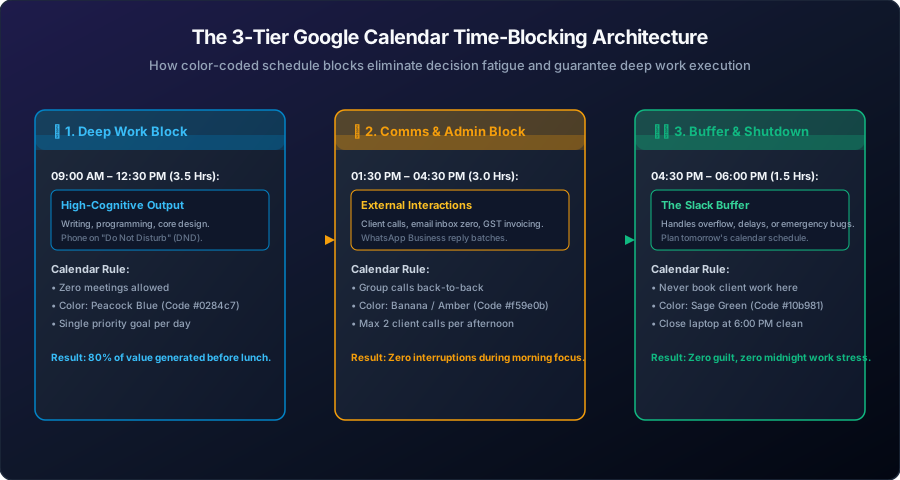
Notice the protective boundaries of this design:
- Tier 1 — Morning Deep Focus (9:00 AM – 12:30 PM): 3.5 uninterrupted hours reserved exclusively for your highest cognitive output (coding, writing, client deliverable creation). Zero meetings or social notifications allowed.
- Tier 2 — Afternoon Admin & Comms (1:30 PM – 4:30 PM): Grouped client calls, email inbox zero processing, GST invoicing, and WhatsApp Business replies.
- Tier 3 — The Daily Buffer & Shutdown (4:30 PM – 6:00 PM): A dedicated 90-minute safety cushion that absorbs unexpected delays, client emergencies, or overflow work so you always close your laptop on time.
2. Step 1: Setting Up the 3 Dedicated Google Calendars
Do not dump all your schedule blocks into a single default calendar. Instead, create three separate sub-calendars under your main Google account. This allows you to toggle visibility on and off, assign distinct colors, and instantly audit how you are spending your life.
• 1. Deep Work (Peacock Blue / #0284c7): Reserved for high-value deliverables.
• 2. Comms & Admin (Amber / #f59e0b): Calls, emails, billing, and follow-ups.
• 3. Personal & Buffer (Sage Green / #10b981): Workouts, meals, buffer time, and daily shutdown.
3. Step 2: Protecting Your Morning "Deep Work" Monolith
Your willpower and cognitive energy are highest during the first three hours after waking up. If you spend those precious hours checking emails, scrolling social feeds, or answering WhatsApp inquiries, you fry your focus on trivial low-value tasks.
Here is the golden rule: Never open your email inbox before 12:30 PM.
How to Schedule Your Morning Monolith:
- On Google Calendar, click on Monday at 09:00 AM and drag down to 12:30 PM.
- Title the event:
🎯 Deep Work: [Single Priority Task]. - Under the calendar dropdown, assign it to your Deep Work (Peacock Blue) calendar.
- Under repeat, choose Every weekday (Monday to Friday).
- Set notifications to: None (you already know what you are doing).
Do not write "Do various tasks" inside your morning block. Every Sunday night, name the exact deliverable (e.g. "Code User Auth Module" or "Draft 2,000 words for Zoho Guide"). When 9:00 AM arrives, you open that exact file and begin without hesitation.
4. Step 3: Batching Afternoon Calls & Administrative Tasks
Context switching is the silent assassin of productivity. A study by the University of California found that it takes an average of 23 minutes and 15 seconds to regain deep focus after a single interruption.
If you have one client call at 10:30 AM, another at 1:00 PM, and a third at 4:15 PM, your entire working day is fragmented. You spend all day waiting for the next call rather than producing output.
The Solution: Strict Batching Windows
- Block out 01:30 PM to 04:30 PM daily as your Comms & Admin (Amber) window.
- If you use a free booking tool like Calendly or Zoho Bookings, configure your availability settings so clients can only book slots between 2:00 PM and 4:30 PM.
- During this window, you process emails to Inbox Zero, issue invoices on Zoho Invoice, and reply to client inquiries in WhatsApp Business.
5. Step 4: The 90-Minute "Slack Buffer" (Why Most Schedules Fail)
In the real world, things go wrong:
- A client sends urgent revision feedback.
- A critical software bug requires unexpected debugging.
- Your internet connection drops for 45 minutes.
If your calendar is booked wall-to-wall from 9:00 AM to 6:00 PM with zero empty slots, any minor glitch forces you to work until 9:00 PM or weekend nights, breeding chronic resentment and burnout.
To bulletproof your week, schedule a mandatory Buffer Block from 04:30 PM to 06:00 PM every weekday:
- Title:
🛡️ Flex Buffer & Daily Shutdown. - Color: Sage Green.
- If an emergency occurred during the day, this buffer block absorbs it without touching your evening personal life.
- If everything went smoothly, you use this time to review tomorrow's schedule, clear your physical desk, and shut down your computer with complete satisfaction.
6. Step 5: Mobile Phone Synchronization & Home Screen Widgets
A calendar system is useless if you have to sit in front of a laptop just to remember your schedule.
Every time you unlock your phone, you see your color-coded blocks (Peacock Blue, Amber, Sage Green) at a single glance. You never have to wonder what to focus on next.
7. Real-World Troubleshooting & FAQ
Conclusion: Own Your Hours or Someone Else Will
If you don't deliberately decide how your calendar will be spent, other people will gladly fill it for you with unnecessary meetings, endless email pings, and reactive firefighting.
Time blocking is not about restricting your freedom; it is about guaranteeing that the things that truly matter — your high-leverage client projects, your business growth, and your personal evenings — are fiercely protected. Take fifteen minutes this Sunday, create your three sub-calendars, block out your morning deep work monolith, and experience the quiet confidence of a workday that truly belongs to you.