

Over the past five years, the note-taking software landscape has become increasingly aggressive. Tools like Notion, Evernote, Bear, and Roam Research lure you in with shiny web interfaces, only to trap your most sensitive personal reflections, technical ideas, and client documentation behind recurring monthly subscriptions or proprietary database formats.
If your internet goes down while you are traveling on a train, you cannot access your files. If the company changes its pricing tier, you are forced to pay or manually export thousands of broken files. And if a service shuts down, your digital life disappears with it.
In late 2024, I made a conscious decision to reclaim complete ownership over my digital thoughts. I migrated my entire knowledge base into Obsidian — a 100% free, offline, local-first markdown note-taking application.
In this hands-on, practical walkthrough, I will show you how to build a clean, minimalist "Second Brain" from absolute scratch. You will learn how to structure your vault, connect thoughts with bidirectional [[Wikilinks]], leverage the famous interactive Graph View, and synchronize your notes between your computer and Android smartphone completely free of charge.
In Obsidian, your notes are not trapped inside a locked cloud database. They are plain .md (Markdown) text files stored directly in a folder on your hard drive. Even if Obsidian ceases to exist thirty years from today, your notes can still be opened and edited with any basic text editor on any computer on Earth.
1. How the Offline "Second Brain" System Works
Traditional note-taking apps force you into rigid hierarchies: Folder → Subfolder → Sub-subfolder → File. The problem with this folder-first approach is that human memory does not operate in rigid vertical filing cabinets. Our brains work through associative connections.
When you read an insightful article on client pricing, that thought connects simultaneously to Freelance Billing, Client Negotiations, and Annual Revenue Goals. Forcing it into one single folder breaks those contextual bridges.
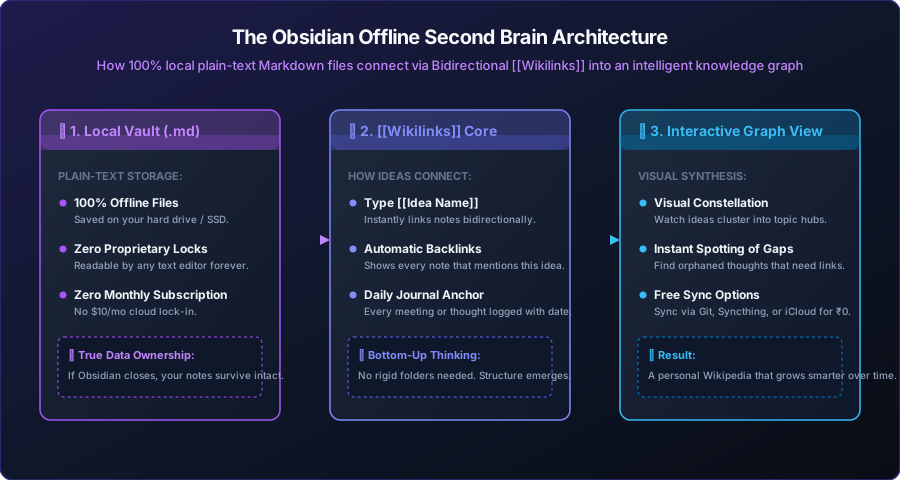
As shown in the architecture above, Obsidian solves this by treating notes like a personal, offline Wikipedia. You simply write in plain text, link concepts using double square brackets, and watch an interconnected constellation of knowledge grow organically over time.
---2. Step 1: Downloading Obsidian & Creating Your First Vault
Obsidian is available for Windows, macOS, Linux, iOS, and Android. It is 100% free for personal use with zero feature restrictions.
A "Vault" is simply a regular folder on your computer where Obsidian will store your markdown notes. Name your vault Second Brain or Notes Hub, and choose a safe location on your hard drive (e.g., D:\Documents\Second Brain).
3. Step 2: The Minimal Folder Structure (The 4-Folder Rule)
Beginners frequently ruin Obsidian by creating fifty empty folders on day one. Resist this temptation. To keep your system effortless, start with only these four foundational directories:
| Folder Name | Purpose | What Lives Here |
|---|---|---|
| 01 Inbox | Temporary capture buffer | Quick raw thoughts, book highlights, website links, or fleeting meeting notes before they are organized. |
| 02 Daily Notes | Chronological logbook | Your daily work journal (one note per day) where you record daily tasks, thoughts, and reflections. |
| 03 Knowledge Hub | Permanent evergreen notes | Synthesized reference notes on specific topics (e.g., DNS Networking, Client Onboarding SOP). |
| 04 Attachments | Media repository | Images, screenshots, and PDFs dragged into your notes, keeping your root directory spotless. |
Go to Settings → Files and links → Default location for new attachments. Change it to In the folder specified below and type 04 Attachments. Now, whenever you paste an image or PDF into a note, Obsidian neatly tucks the image file into your attachments folder automatically.
4. Step 3: Mastering [[Wikilinks]] & Bidirectional Backlinks
The superpower of Obsidian is the Wikilink. Whenever you are writing a note and want to reference another idea, simply type two open brackets: [[.
Obsidian immediately displays a dropdown search of all existing notes in your vault. If the note already exists, hit Enter to link to it. If the note does not exist yet, keep typing the name and hit Enter — Obsidian creates a placeholder link that you can click to generate the new note later.
Example in Action:
Imagine you are typing in your Daily Note for today:
### Daily Log: 17 November 2026
- Had a kick-off call with Rahul from [[Apex Design Studio]].
- Discussed setting up a custom domain on [[Zoho Mail]].
- Need to research how to enforce [[DKIM Authentication]] to prevent spam filtering.
Notice what just happened:
- You linked your meeting directly to the client's page:
[[Apex Design Studio]]. - You linked the software tool:
[[Zoho Mail]]. - You linked the technical concept:
[[DKIM Authentication]].
When you later open the note titled Apex Design Studio, look at the right sidebar under Backlinks. Obsidian automatically displays every single daily note, meeting log, or invoice draft where Apex Design Studio was ever mentioned — with zero manual tagging!
---5. Step 4: Setting Up the Daily Notes Workflow
The daily note is your daily anchor. It stops you from wondering "Where should I write this?". Whenever you sit at your desk in the morning, you write in today's daily note.
• Date format: YYYY-MM-DD (e.g., 2026-11-17)
• New file location: 02 Daily Notes
Obsidian instantly opens today's note. You can capture to-dos, meeting insights, or code snippets with complete peace of mind.
6. Step 5: Visualizing Ideas with the Interactive Graph View
Press Ctrl + G (or Cmd + G on Mac) at any time to open the famous Graph View.
In the beginning, your graph will look like a few scattered white dots. But as you link clients, projects, software tools, and technical guides over several weeks, you will see organic constellations start to form:
- Hub Nodes: Notes that have many links (like Zoho Mail or Client Deliverables) grow larger, showing you your primary areas of focus.
- Unlinked Thoughts: Isolated dots indicate thoughts that you haven't connected to your broader knowledge system yet, nudging you to integrate them.
- Search & Filter: You can filter the graph by tags, specific folders, or keyword clusters to isolate exact project workflows.
7. Free Synchronization: How to Sync Notes to Your Phone for ₹0
Obsidian offers an official paid sync service called Obsidian Sync ($4 to $10/month). However, because Obsidian's files are just standard folders on your hard drive, you can synchronize your notes across your laptop, desktop, and mobile phone completely free using any of these zero-cost methods:
| Sync Method | Best For | How It Works & Cost |
|---|---|---|
| Syncthing | Windows & Android | 100% Free & Open Source. Creates an encrypted, peer-to-peer Wi-Fi bridge directly between your PC and phone. Notes sync automatically in seconds without passing through third-party cloud servers. |
| Git + GitHub | Developers & Programmers | 100% Free. Using the official community plugin Obsidian Git, your vault automatically commits and pushes backup revisions to a private GitHub repository every hour. |
| iCloud Drive | Mac & iPhone | 100% Free. Simply place your Obsidian vault inside your native iCloud Drive folder. Apple handles synchronization automatically between desktop and mobile. |
8. The 3 Essential Community Plugins Worth Installing
Obsidian has a library of over 1,500 free community plugins. While you should avoid bloating your setup, these three plugins dramatically improve daily quality of life:
- Dataview: Turns your vault into a personal search engine. It lets you write small queries like "List all tasks where status = In Progress" and displays them as a live dynamic table.
- Paste URL into Selection: When you highlight a word and press
Ctrl + V, it automatically formats the text as a clean markdown hyperlink[text](url)instead of overwriting the word. - Editor Syntax Highlight: Enhances code blocks with vibrant, syntax-highlighted code for HTML, JavaScript, Python, and CSS snippets.
9. Real-World Troubleshooting & FAQ
Conclusion: Build for the Long Haul
Software tools come and go. Startups raise venture capital, get acquired, hike subscription prices, or discontinue beloved features.
By investing your time into plain-text Markdown notes in Obsidian, you are building on a format that has existed for decades and will exist for decades to come. Your thoughts, your ideas, and your business intellectual property remain 100% yours. Download Obsidian today, create a simple 4-folder vault, and start linking your thoughts.